
Communicating on ClickUp tasks
Once you’ve logged a task in ClickUp, all ongoing communication with the Plume team will take place within that task, from clarification questions to progress updates and final resolution.
In this section, we’ll cover the key features to help you stay connected and informed, including:
- Commenting on tasks
- Mentioning (tagging) team members
- How notifications work and how to manage them
Clear communication in the task thread helps ensure nothing gets missed, and makes it easy for both your team and ours to stay aligned.
Adding comments
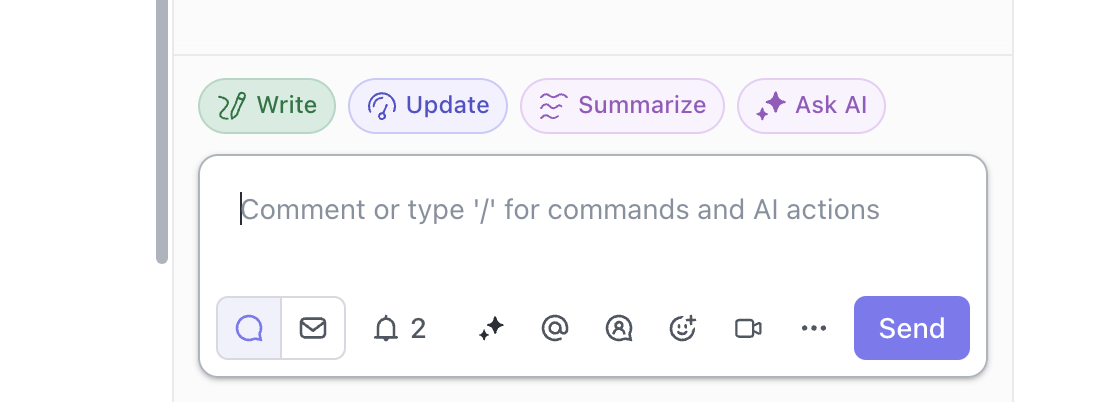
Comments area added to tasks to ensure communication is kept in one place, specific to the task. Not only does this foster quicker investigation and resolving of items, but can provide other team member with context at at later date.
To add a comment, simply use the Comment section which can be found in the bottom right hand corner when opening a task:
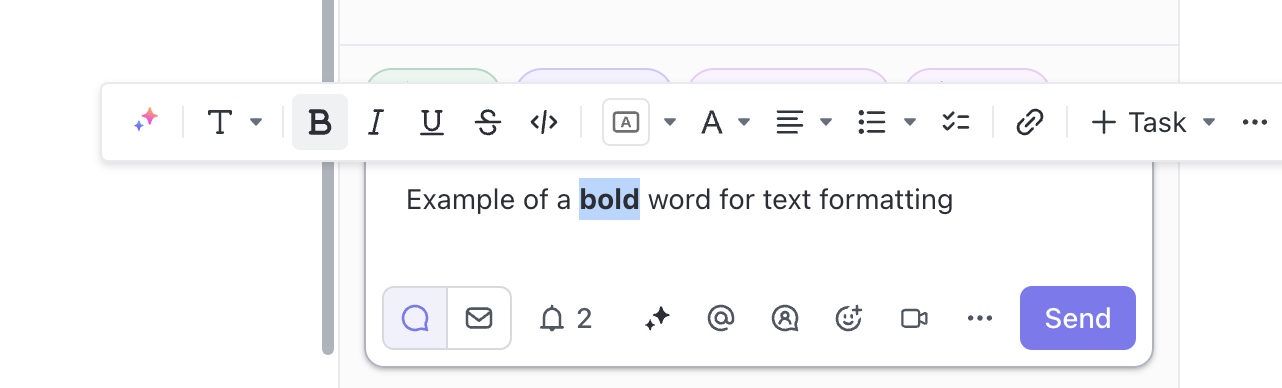
You can also select text and use the formatting tools to format your comments, as shown here:
Mentioning (tagging) users
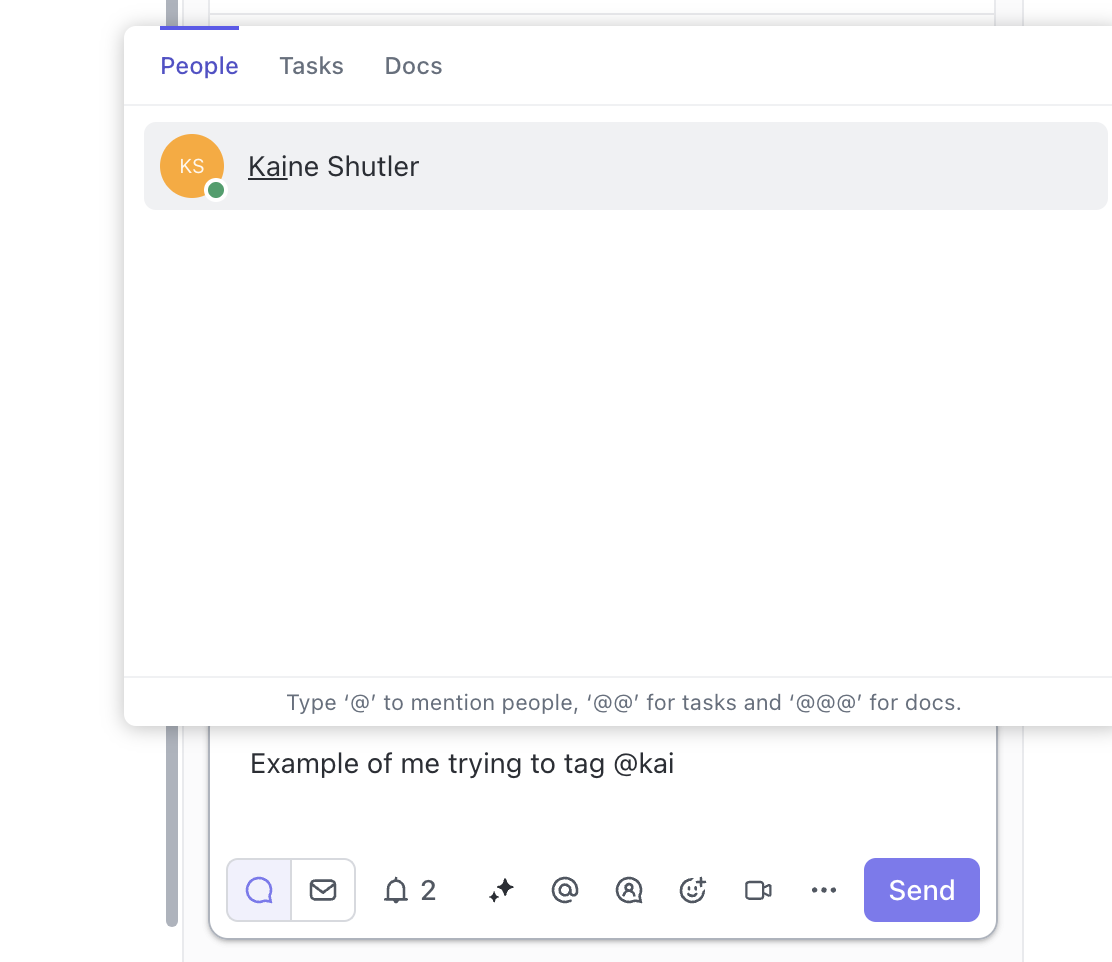
To mention (or tag) someone in ClickUp, simply use the @ symbol followed by their name. This allows you to select the specific user you want to notify:
Why mentioning matters:
While anyone who has created, commented on, or been added as a Watcher to a task will receive general updates (you can view watchers by clicking the bell icon at the top of the task), mentioning a user directly ensures they receive an instant notification in their ClickUp Inbox.
This is especially useful when:
- You’re asking someone a question
- You’re handing a task over for review or action
- You need input or clarification
As a best practice, we recommend always mentioning the relevant person in your comment if you expect a response or want to draw their attention to something.
If you're just adding an internal update or note, a mention may not be necessary.
Reviewing Your ClickUp Notification Settings
ClickUp includes an Inbox feature designed for daily users, but most clients won’t need to check it regularly. That’s why it’s important to ensure your notification settings are configured to send you email alerts when you’re mentioned or assigned to tasks.
This helps you stay in the loop without needing to log in every day.
How to Review and Update Your Notifications:
- Click your profile photo in the top-right corner of the ClickUp interface to open the Account menu.
- Select Notification Settings.
- Review your preferences.
Our recommendations:
- Disable Browser and Mobile notifications (unless you use ClickUp daily).
- Enable Email notifications to ensure you don’t miss important updates.
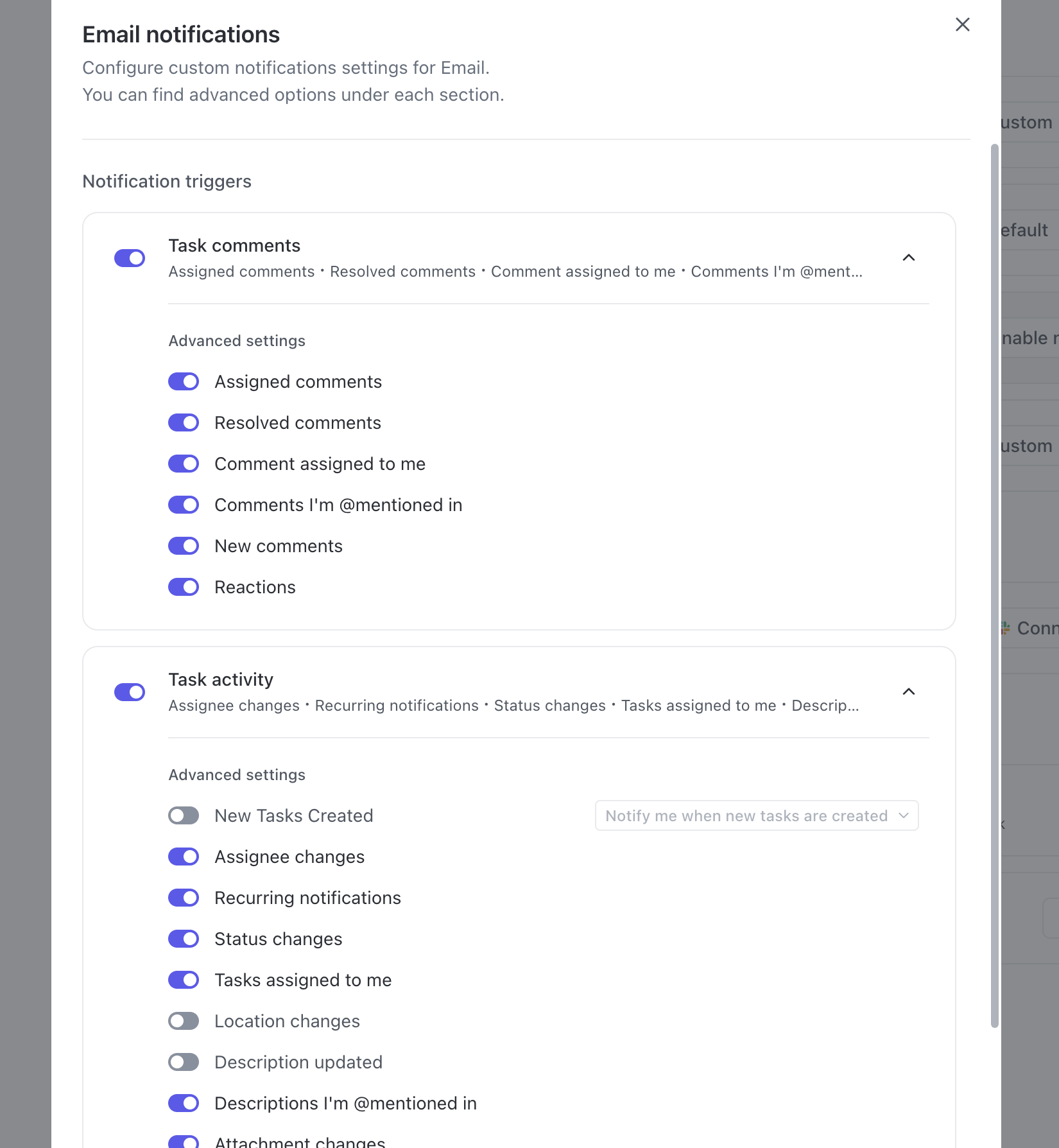
- For more control, choose the Custom option under Email notifications. This will open a detailed settings panel.
We recommend enabling all options that include “I’m @mentioned” at a minimum.
This ensures you’ll get timely email alerts whenever someone tags you in a task or comment—so nothing slips through the cracks.