
Task statuses in ClickUp (Workflow)
ClickUp statuses act as labels that show where a task is in the workflow, such as To Do, In Progress, or Complete.
These statuses help ensure smooth coordination between our team and yours by making it easy to see what’s currently being worked on, what’s under review, and what’s been delivered.
Our status workflow is outlined below to help you understand:
- What each status means
- How tasks typically move through the workflow
- Where your input might be required
Tip: Many statuses relate to internal Development and QA stages. These will be visible to you but may not always require your action. Your Project Manager will confirm which statuses are most relevant for your involvement.
Updating Task Statuses
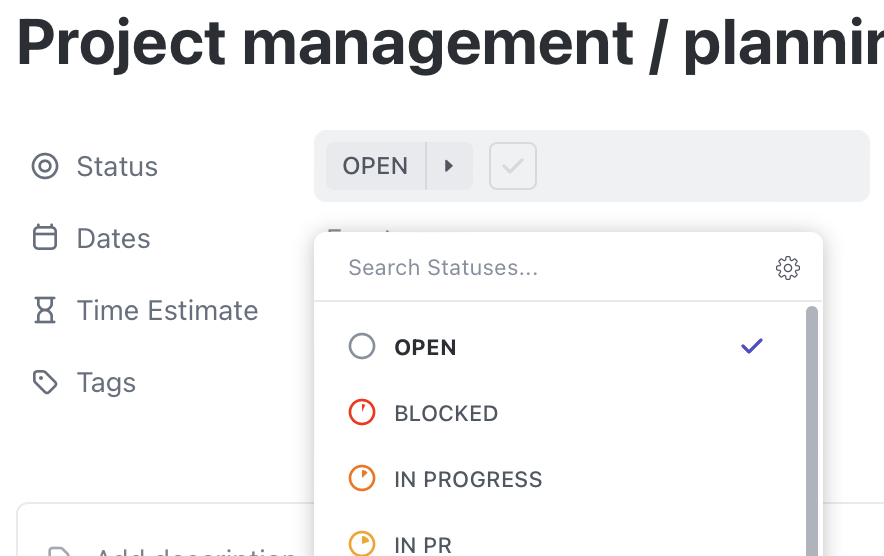
Statuses can be updated directly from within a task. To change a status:
- Open the task in ClickUp.
- Click on the existing status label near the top of the task.
- Select a new status from the dropdown menu.
2-Tier vs. 3-Tier Workflows
The workflow assigned to your project depends on your technical setup - specifically, how many environments (like staging or development) are used.
Most projects follow one of these two structures:
- 2-Tier Workflow: Staging → Production
- 3-Tier Workflow: Development → Staging → Production
Your Project Manager will let you know which applies to your setup.
Statuses Explained
Below is a full list of statuses used in a 3-Tier workflow, with descriptions for each.
Remember, your project may differ, and could have less statuses if using a 2-Tier Workflow.
| Name | Description |
|---|---|
| Open | Initial state for all new tasks. |
| Blocked | The task cannot be progressed due to a blocker or question that needs to be answered. |
| In Progress | The task is currently in progress. |
| In PR | Developer has submitted a pull request so the work can be code reviewed by the rest of the development team. |
| Awaiting Deployment to Development / Staging | The PR has been merged and is awaiting release to the test environment (named accordingly, depending on the 2-tier / 3-tier setup). |
| In Developer Review | The task has been deployed to an environment ready for the developer to sense check before passing this over to Plume QA for detailed testing. |
| Ready for Internal QA on Development | Task is ready to be reviewed by Plume QA on the Development environment. |
| Passed Internal QA on Development | Task has been approved by Plume QA and is ready to proceed to the Staging environment. |
| Failed Internal QA on Development | Task has been rejected by Plume QA and needs to be reviewed by the developer. |
| Ready for Internal QA on Staging | Task is ready to be reviewed by Plume QA on the Staging environment. |
| Passed Internal QA on Staging | Task has been approved by Plume QA and is ready to proceed to the Production environment. |
| Failed Internal QA on Staging | Task has been rejected by Plume QA and needs to be reviewed by the developer. |
| Ready for Client Testing | The task is ready to be reviewed by the client, prior to being deployed to a Production environment. |
| Client Testing Passed | The task has been approved by the client and is ready to be deployed to the Production environment at the next opportunity. |
| Client Testing Failed | The task has been rejected by the client and needs to be reviewed by Plume. |
| Deployed to Production | The task has been deployed to the Production environment, where the client is free to confirm the task has been delivered as expected. |
| Task Completed (Non-Code) | Used for non-code related tasks. The task has been completed to the best of the individual's knowledge, and requires the Project Manager to review and close the task if no further action. |
| Resolved | This is the overall "Closed" state in ClickUp. Whilst Deployed to Production and Task |